Showing posts with label Windows 7. Show all posts

Sunday, August 22, 2010

Download Windows 7 RC Today

Microsoft released Windows 7 RC (Release Candidate) for you to test and install. TechNet and Microsoft both links have pretty good installation documents.

Welcome to Windows 7 Release Candidate (RC) testing. We’re on our way to Windows 7, and the RC is a great opportunity for IT professionals like you to take Windows 7 and begin testing it in your real environment. You get to see what’s coming, and we get to see if our changes and fixes from the Beta testing are working correctly. We want to encourage you to install and actively test the RC code. This will help us ensure Windows 7 is the best possible release, and help you get ready for Windows 7 deployment.

Download Links:

http://technet.microsoft.com/

http://www.microsoft.com/

You can download x64 or x32 in various languages such as German, French, Japanese or Spanish

How to boot and install Windows 7 from USB flash drive

The Windows 7 beta has been released for quite a while now. If you want to follow the crowd and test it in your system, but do not want to burn into a DVD, here is how you can create a bootable USB drive to install Windows 7 on your system.

Format USB flash drive to NTFS format

(For Win XP only. Vista users can directly format the USB drive to NTFS format) In your Windows, go to Control panel -> system -> hardware -> Device manager.

Under the disk drives section, right click on the USB storage drive and select Properties.

Go to the Policies tab, select optimize for performance. Click OK.

Open your Windows Explorer, you should see the USB storage drive in the inventory. Right click and select Format. Select NTFS from the drop down bar. Click Start.

For Windows XP,

Download MBRWizard. Extract the zipped files to your desktop.

Open a command prompt (Start –> Program –> Accessories –> Command Prompt).

cd Desktop/MBRWiz2.0/
MBRWiz /list

Record the USB flash drive disk number

Make the USB drive active.

mbrwiz /disk=X /active=X (X is Disk Number of your USB Drive)

For Windows Vista,

On the Start menu, navigate to the command prompt entry. Right-click and select Run as administrator.

Type

diskpart
list disk

Record the disk number of your USB flash drive.

Select the USB disk.

select disk X (X is the drive number of the USB flash drive)

List the current partition. Record the partition number.

list partition

Select the current partition and make it active.

select partition Y (Y is the partition number of the USB flash drive)
active

Creating bootable USB flash drive

Download Windows 7 iso (32-bit) file to your desktop.

Download and install WinRAR.

Right-click on the Windows 7 iso file and select Extract files. Extract the files to a folder (you can name the folder any name you want, but for illustration purpose, I name it win-7) in your desktop.

In your command prompt, cd to the windows 7 folder.

cd Desktop/win-7 (Change the destination to the folder that you have extracted)
cd boot
bootsect /nt60 X: (X is the drive latter of your USB drive )

Now, copy all the files from the Windows 7 folder to the USB flash drive.

Reboot the computer. Remember to change the first boot device to your USB drive in the BIOS.

You should be able to install Windows 7 from your USB flash drive now.

Download Free Windows 7 Themes, Gadgets and Wallpapers from Microsoft

If you are using Windows 7, you can download lots of FREE themes, Desktop gadgets and wallpapers from Microsoft official website.


Right-click on Desktop and select “Personalize“. Now click on “Get more themes online” link:

It’ll open following a webpage in your browser:


Windows 7 Beta: Personalize your PC

You can directly open the above site in your browser.

You’ll see lots of themes available on that page:

Click on any theme which you want to download. It’ll download a .themepack file. Double-click on the file and Windows will automatically install and apply it.

PS: The site is new and there will be lots of updates in coming days. So keep visiting the site.

Microsoft Security Essentials – Free Security Software for Your PC

You’re too busy to spend a lot of time worrying about protecting your PC. With Microsoft Security Essentials Beta, you get high-quality protection against viruses and spyware, including Trojans, worms and other malicious software. And best of all, there are no costs or annoying subscriptions to keep track of.

It’s very easy to install Security Essentials using it is even easier than one might expect. Updates and upgrades are automatic, so there’s no need to worry about having the latest protection. It’s easy to tell if you’re protected – when the Security Essentials icon is green, your status is good. It’s as simple as that.

When you’re busy using your PC, you don’t want to be bothered by needless alerts. Security Essentials runs quietly in the background, only alerting you if there’s something you need to do. And it doesn’t use a lot of system resources, so it won’t get in the way of your work or fun.

Requirements:

· For XP – CPU with clock speed of 500 MHz or higher
· For XP – Memory: 256 MB RAM or higher
· For Vista / W7 – CPU with clock speed of 1.0 GHz or higher
· For Vista / W7 – Memory: 1 GB RAM or higher
· VGA (Display): 800 x 600 or higher
· Storage: 140 MB of available hard-disk space
· An Internet connection is required for installation and to download the latest virus and spyware definitions for Microsoft Microsoft Security Essentials
· Internet Browser (IE or Firefox)

Microsoft Security Esentials

Free Version for Vista and 7 (32 bit)

Free Version for XP (32 bit)

Free Version for Vista and 7 (64 bit)

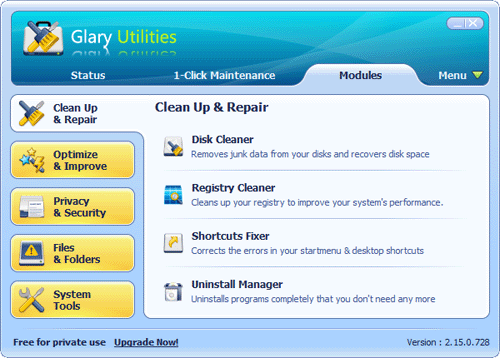
Portable Glary Utilities 2.16.0.758

Glary Utilities is a collection of utilities developed to help you fix, speed up and maintain your computer at optimum performance.
Glary Utilities lets you clean common system junk files as well as invalid registry entries and Internet traces (it provides support for more than 45 external programs). Furthermore, Glary Utilities includes options to optimize memory, find, fix, or remove broken Windows shortcuts, manage the programs that start with Windows and software uninstall. Other features include secure file deletion and empty folder finder.


Download time:56K: 15m 57s 64K: 13m 57s 128K: 6m 59s 768K: 58s
Downloads:Total: 2,432 | Last week: 10
Hits:2235 visitors
Publisher:GlarySoft Inc
OS Support:Windows All
License:Freeware
Date added:27-09-2009
Last Update:22-09-2009
Size:6.54 Mb
Download Mirror 1
Download Mirror 2

Windowpaper XP – Add Wallpapers to Windows XP Folders

Windowpaper XP lets you customize the background of your folders with wallpapers in the same way, you can customize your desktop.

It allows you to select a custom background image for any folder you want, specify the font color (to make it stick out) and instantly preview the results.

Very easy to use, neat tool for those that like to customize their workspace.
Features


* Intuitive 1, 2, 3 Interface – Windowpaper XP is simple to use. Simply select the folder you wish to modify, your background, your text color, and you’re set!
* Real-time preview window – Watch your changes happen as you make them!
* Change Folder Color – Just want a solid background color instead of a picture? You got it! With a simple click, you can change the folder background color to one of sixteen million supported colors.
* Batch Folder Customization – Many people have e-mailed about adding batch functionality to the new version. Well, you asked and we listened! Just check the “Include Subfolders” checkbox and you not only modify the selected folder, but all the folders in it!
* Change Folder Background Shortcut – Without opening Windowpaper, all you have to do is right click any folder on your hard drive and select “Change Folder Background…”

Minimum System Requirements

* Requires Microsoft Windows XP Home or Professional ™ – Other versions of Microsoft Windows are not supported since previous versions already have the capability to modify folder backgrounds.
* ~5 Megabytes (MB) of Disk Space for Full Install – May be less depending upon your selected installation options.
* ~6 Megabytes (MB) of Memory – May be more or less depending upon selected Windowpapers (32 MB or more is recommended)

Windowpaper XP

Shock 4Way 3D 1.29

General purpose of this program is to use 4 simulating screens simultaneously. To switch into each screen, select one of 4 screens or use shortcut key.
In order to improve your computer's small screen display, this software provides 4 virtual desktops.


Download time:56K: 19m 39s 64K: 17m 12s 128K: 8m 36s 768K: 1m 12s
Downloads:Total: 2,586 | Last week: 0
Hits:2037 visitors
Publisher:Docs
OS Support:WinXP, Win2003, Win2000, Win Vista
License:Freeware
Date added:15-10-2009
Last Update:02-08-2008
Size:8.06 Mb

TweakNow PowerPack 2009 1.7.2000

TweakNow PowerPack is a fully-integrated suite of utilities that let you fine-tune every aspect of your computer's operating system and Web browser.
The RAM Idle program manages the free memory that is available to run Windows programs. It prevents performance from degrading as you swap files and programs in and out of memory. The AutoShutdown program lets you suspend, hibernate, or shut down your computer after a specified period of time.

In addition to saving resources, this program keeps your system more secure by making it unavailable to unauthorized people. The CD AutoRun is an extension of Windows' CD and DVD autorun features, giving you additional options for starting programs or listening to music.

Download time:56K: 17m 19s 64K: 15m 9s 128K: 7m 34s 768K: 1m 3s
Downloads:Total: 1,352
Publisher:Tweak Now
OS Support:WinXP, Win Vista, Windows 7
Size:7.1 Mb

Download Free

PaperCut™ Print Logger

PaperCut™ Print Logger is a free print logging application for Windows systems designed to provide real-time activity logs detailing all printer use. Information tracked includes:


* The time of print,
* the name of the user who printed,
* the total number of pages,
* document names and titles,
* other job attributes such as paper size, color mode and more.

Logs are available in a viewer friendly HTML format, or in CSV or Excel format for advanced users needing the data for further analysis.
Highlights...

* 100% free!
* Easy to use HTML interface.
* Now available in English, French, German, Italian and Spanish.
* Real-time logs ensuring printing history data is always current and live.
* Data is available Microsoft Excel compatable format allowing for detailed analysis and charting.
* Compatable with both desktop and server versions of Microsoft Windows.
* Works with almost all major printer makes and models.
* Unobtrusive - no need to modify the printing process or configure printers differently.
Why is PaperCut Print Logger free?

PaperCut Print Logger provides a way to get a "taste" of some of the benefits that our applications offer. Our main development focus is our print management applications like PaperCut NG and PaperCut ChargeBack. If you need more than just logging, please check our other applications.

Do you provide support for PaperCut Print Logger?

Because Print Logger is a free application, we're not able to provide official support. If however you have a quick question, please feel free to contact support and our developers will do their best to help you out in their spare time.

Can I install PaperCut Print Logger on my server and monitor all network printing?

If your server is setup up to host print queues and workstations print to these shared queues, then installing PaperCut Print Logger on the server will monitor all printing. Computers with individually attached desktop printers will need Print Logger installed locally if monitoring these printers is desired. Consider PaperCut NG if you require centralized logging from multiple systems.

I have a virtual PDF printer or FAX printer installed. How do I stop PaperCut Print Logger from monitoring this printer/device?

Printers can be ignored by defining the printer's name in the IgnoredPrinters setting in the configuration file located at:

C:\Program Files\PaperCut Print Logger\print-logger.conf

Remember to restart the PaperCut Print Logger Service in Control Panel -> Services to apply this change.

I notice you offer solutions for Apple Mac and Linux. Why is Print Logger only available for Windows?

We may look at developing a version for Mac or Linux in the future. We first need to gauge popularity. If you're interested in a version for this platform, please email support and put your vote in!

Are you planning any new features?

The goal of Print Logger is to do one job (logging) and do it well. We may make minor tweaks and will continue to support new hardware. The main development goal however simply logging. If you're looking for advanced features please consider our other applications.

Does Print Logger support Microsoft Cluster Server?

Not officially, but you may be able to set it up using a similar procedure to the cluster setup notes for PaperCut NG. For official support in a cluster environment, please consider our other applications.

Can I use the data for reporting?

The raw print log data recorded is available in a Microsoft Excel format. You may be able to use many of the features of Excel or a similar program to summarize and construct reports. If you're after pre-built reporting features, please consider PaperCut NG.

Where can I find the download?

The latest version of PaperCut Print Logger can always be downloaded from the "Download Now" link at the top of this page on www.papercut.com .

What are the different platforms supported by PaperCut Print Logger?

PaperCut Print Logger supports the following platforms:

* Microsoft Windows Server 2008 (any edition)
* Microsoft Windows Server 2003 (any edition)
* Microsoft Windows 2000 (Pro and Server)
* Microsoft Windows XP (any edition)
* Microsoft Windows Vista (any edition)

Download Now (470kb) English, French, German, Italian and Spanish

Windows 7 Logon Background Changer 1.3.4

The Windows 7 Logon Background Changer application was designed to be a free open source software that lets you change the wallpaper of the Windows 7 login screen.
It has been tested successfully with Windows 7 RC 7100, but it should also work with future releases.


Publisher:Julien MANICI
OS Support:Windows 7
License:Freeware

Size:0.7 Mb
Free Download Now

Free Download Now2

6 Essential Tips to Speed up Windows 7

Without a doubt, Windows 7 is a much better operating system than its predecessors, but that doesn’t mean it is the speediest of them all. Due to the hardware requirement, those who still have their old computer may not get the same performance as good as they had with Windows XP. Even if the computer comes with all the latest hardware installed, there are still many factors that can substantially slow down the performance. In this article, we are going to show you 6 useful ways to improve the speed and performance of your Windows 7.


1. Disable Unnecessary Visual Effects

  • Right click on “Computer” in windows start menu and choose “Properties”.
  • Click on “Advanced System Settings” at the left pane.
  • Under the “Advanced” tab, click on “Settings” under “Performance” category. Select the “Custom:” option.
  • Look through the list and uncheck the effects that you have no used for it. (Note: For optimum result, uncheck all the check box except the last four items). Click OK.
  • Restart your computer.

windows 7 disable visual effect

You will notice the result immediately.

2.Increase the Boot Speed

With this small tweak, you can decrease the boot time of your Windows 7.

  • Press Windows Key + R to launch the Run window.
  • Type “msconfig” and hit Enter. The System Configuration Window will appear.
  • Under the “Boot” tab, find the box (on the right side) labeled with “Time out”. Generally it is set to 30.
  • If you are using only one operating system then you can set the value as 0. But if you are using more than one, then set to 3.
  • Check “No GUI Boot” option.

windows 7 boot speed timeout

  • Click the “Advanced Options” button.
  • Check the box labeled with “Number of Processor” and select the number of processors in your computer. Most probably it will be 2.

windows 7 increase number of boot up processors

  • Now click “OK”.
  • Click “Apply” and then “OK”.

Note: The above tricks will work only If you are using multi-core (more than one) processor in your computer.

3: Disable Windows Aero theme

Windows Aero theme is the eye candy in Windows Vista/7. While its performance was greatly improved in Win 7 as compared to Vista, it is still taking up a large amount of memory and squeezes the graphics card to its maximum. If you can live without the eye candy, then it is a great choice to disable it.

  • Right click on the desktop and select “Personalize” .
  • Chose One of the standard themes from the right hand side. “Windows 7 Basic” is a good choice.

windows 7 disable aero themes

4. Remove unwanted items from startup menu

Some of the applications that you have installed are automatically added tn the startup menu without your knowledge. If you are wondering why your Windows take so long to startup, they are mainly the culprit. The best way to fix this is to remove the unwanted programs and services from the startup menu.

  • Press Windows Key + R and type “msconfig” in the run dialogue box.
  • Go to the Startup tab. Uncheck the applications that you have no use for. (Make sure you do not remove any system services).

5.Use your USB flash drive as RAM

In Windows 7, there is this awesome and useful feature that allows you to use your USB flash drive as an external RAM.

Before you start, make sure that you are using a freshly formatted USB drive.

  • plug in your USB drive. Right click on the USB drive in My Computer window and select Property.
  • Under “Ready Boost” tab, check the box “Use this device”.
  • Configure the space of your USB flash drive that you want to allocate for system speed.

use USB drive as readyboost

6. Disable unnecessary system sounds

When it is active, the system sound can take up a lot of system resources and slow down the computer.

  • Press Windows Key + R to open the Run window. Type “mmsys.cpl” and hit Enter.
  • Go to the Sound tab. Select “No Sounds” from the Sound Scheme dropdown box.
Note: You can still keep some of your favorite sounds, but you must disable the Shutdown, Start up, Logoff, Start navigation and Logon sound for the best performance

Easy to modify the Windows Vista bootloader with EasyBCD

EasyBCD is an advanced GUI application that makes it easy to modify the Windows Vista bootloader and the entries in it.

EasyBCD is NeoSmart Technologies’ multiple award-winning answer to tweaking the new Windows Vista bootloader. With EasyBCD, almost anything is possible.


Setting up and configuring Windows boot entries is simple, and there is no easier way to quickly boot right into Linux, Mac OS X, or BSD straight from the Windows Vista bootloader – on the fly, no expert knowledge needed!

EasyBCD is geared for users of all kinds. Whether you just want to add an entry to your old XP partition or want to create a duplicate for testing purposes; if you’re interested in debugging theWindows Kernel or hectuple-booting your seven test operating systems, EasyBCD is the key.

Automated MBR and BCD backups, boot sector restore kits, support for a dozen+ operating systems, detailed configuration of all boot entries, and award-winning guaranteed technical support is what makes EasyBCD stand out.

Drive Icon Changer – Change Windows 7 Drives icons

Drive Icon Changer is a very simple and easy to use application designed to enable users to change their drives icons without much fuss.


You just select the Drive whose icon you want to change, click on Install button, select the icon that you want to use and click Install. Is as easy as that!
Drive Icon Changer